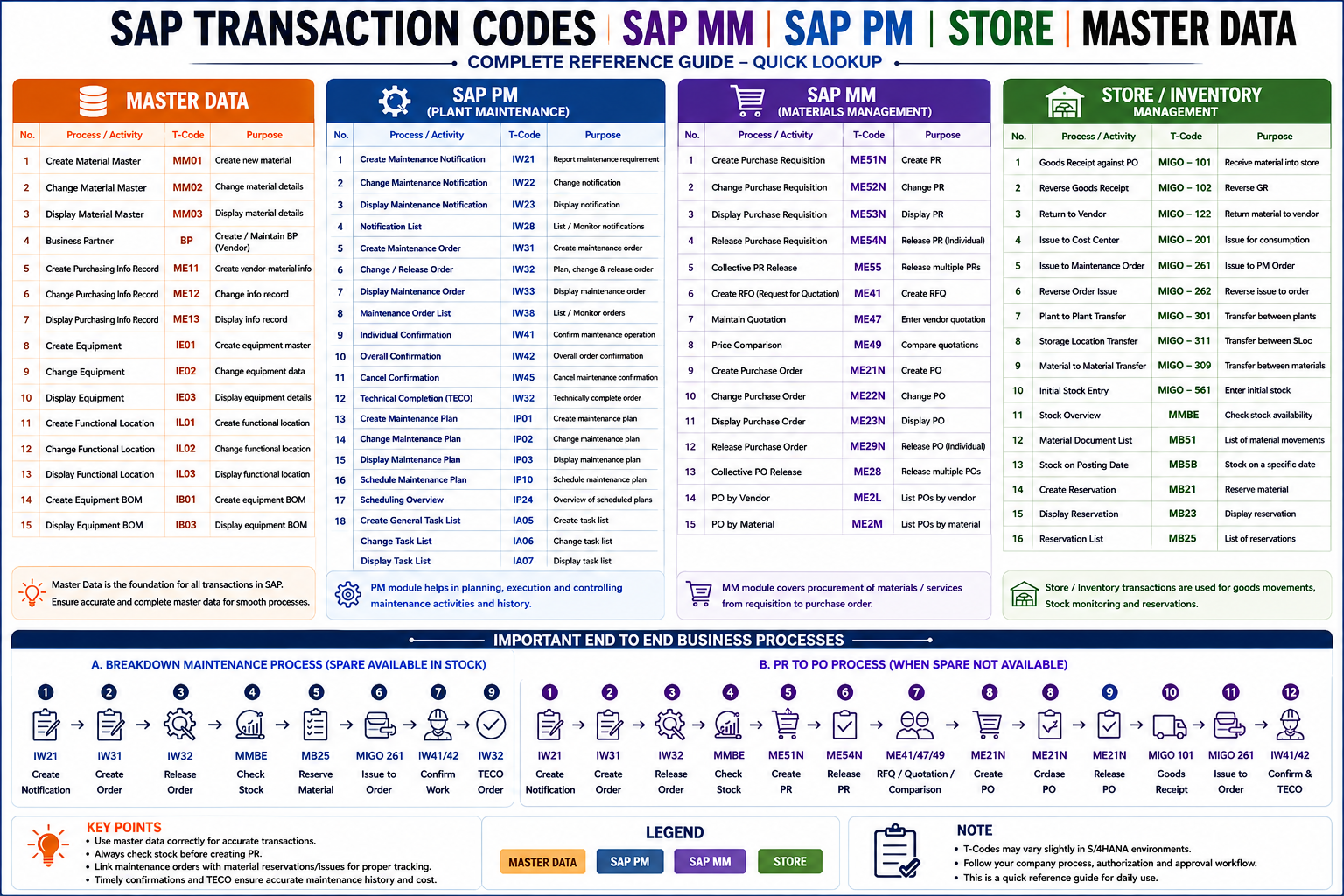
To introduce a new material in SAP, you must first define its key characteristics to manage its behavior across all relevant transactions. Materials can be created via transaction MM01 (the standard method in live environments) or through mass creation (typically a one-time process during system migration to SAP ERP).
How to Create Material Code in SAP MM
A Material Master in SAP MM is the central repository for all material-related data. Creating material codes in bulk (mass creation) saves time when onboarding large inventories.
Also Read: 🚀 Enroll in Live SAP Courses:
🎓 SAP MM (Material Management)
🎓 SAP SD (Sales and Distribution)
Method 1: Using Transaction MM01 (Single, then Copy)
Best for small batches — create one material and copy it.
Steps
- Go to Transaction MM01 (Create Material)
- Enter the Material Number (or let SAP auto-assign)
- Select Industry Sector (e.g., M – Mechanical Engineering)
- Select Material Type (e.g., ROH – Raw Material, FERT – Finished Goods)
- Click Select Views → Choose relevant views (Basic Data, Purchasing, MRP, etc.)
- Enter Organizational Levels (Plant, Storage Location, Sales Org, etc.)
- Fill in all mandatory fields per view:
- Basic Data 1: Description, Base Unit of Measure, Material Group
- Purchasing: Purchasing Group, GR Processing Time
- MRP 1–4: MRP Type, Lot Size, Safety Stock
- Accounting 1: Valuation Class, Price Control (V or S), Moving Price
- Click Save (Ctrl + S)
To copy: Use MM01 → Reference Material field to copy an existing material’s data.
Method 2: LSMW (Legacy System Migration Workbench) — Best for Bulk
Ideal for migrating hundreds or thousands of material codes from Excel/legacy systems.
Steps
Step 1 — Prepare Data
- Export your material list to Excel
- Ensure columns match SAP fields: Material No, Description, UOM, Material Type, Plant, Valuation Class, etc.
- Save as .CSV or .TXT (tab-delimited)
Step 2 — Open LSMW
- Go to Transaction LSMW
- Create a Project, Subproject, and Object
- Click Execute
Step 3 — Define Object (Recording)
- Select Batch Input Recording as the method
- Record a manual MM01 transaction (LSMW records every screen/field)
- Name the recording and save
Step 4 — Map Fields
- Go to Maintain Field Mapping and Conversion Rules
- Map your Excel columns → SAP fields
- Set constants for fields that don’t change (e.g., Industry Sector = M)
Step 5 — Import & Convert Data
- Maintain Files → specify your source file path
- Read Data → LSMW reads your CSV
- Display Read Data → verify it looks correct
- Convert Data → transforms to SAP format
Step 6 — Run the Upload
- Create Batch Input Session
- Run Batch Input Session via SM35
- Choose Foreground (visible) or Background (fast)
- Monitor for errors in the session log
Method 3: MM17 — Mass Maintenance (Edit Existing Materials)
Use this to update fields across many existing materials at once.
- Go to Transaction MM17
- Select the Table to change (e.g., MARA – General, MARC – Plant Data)
- Enter selection criteria (Material range, Plant, etc.)
- Click Execute
- Select materials → Click Select All or choose specific ones
- Edit the field value in the column → applies to all selected rows
- Save
Common Errors & Fixes
| Error | Cause | Fix |
|---|---|---|
| Valuation class not allowed | Wrong material type/val. class combo | Check T025 table config |
| Base UOM cannot be changed | Material has stock/documents | Clear stock first or create new |
| Plant not defined for material | Missing org. level extension | Extend via MM01 > Org Levels |
| Batch session errors in SM35 | Field mapping mismatch | Check LSMW field mapping |
Tips for Bulk Creation
- ✅ Always do a test run in a DEV/QAS client before production
- ✅ Use a Material Master template (reference material) to pre-fill defaults
- ✅ Get sign-off on the Valuation Class from Finance before upload
- ✅ Validate UOM conversions if materials have alternate units
- ✅ Keep a log of created material numbers for reconciliation