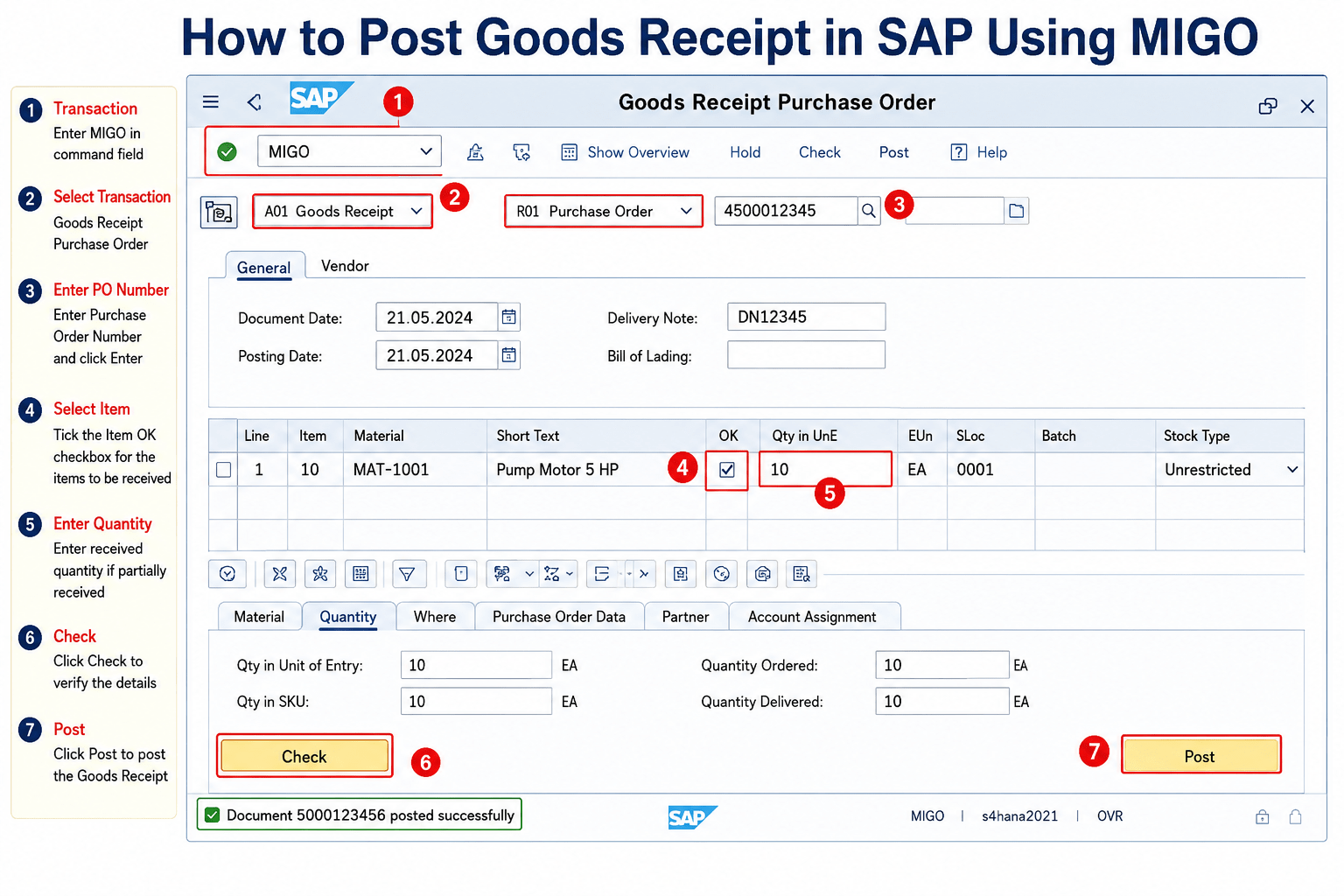
A Goods Receipt (GR) is posted when materials are received from a vendor against a Purchase Order (PO). Posting a GR updates inventory, creates a material document, and—if the material is valuated—creates an accounting document.
What is MIGO in SAP?
MIGO (Movement of Goods) is a standard SAP transaction code used to perform goods movement activities in the Materials Management (SAP MM) module. It provides a single, user-friendly interface for posting all types of inventory movements, such as Goods Receipt, Goods Issue, Transfer Posting, and Returns.
MIGO was introduced to replace several older transaction codes (such as MB01, MB1A, MB1B, and MB1C), allowing users to perform different inventory transactions from one screen.
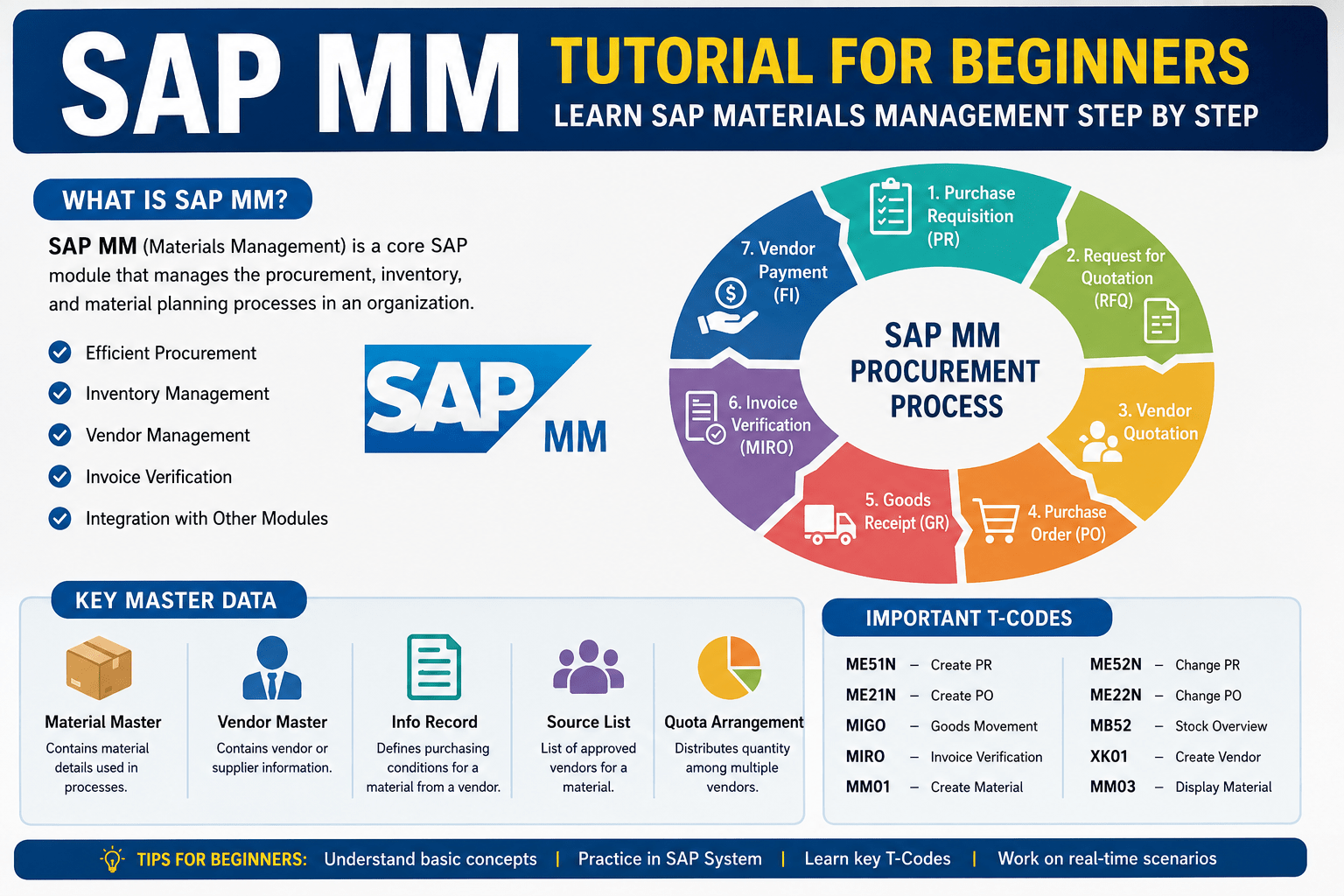
Also READ: SAP MM Tutorial for Beginners (2026 Guide): Learn SAP Materials Management Step by Step
Affiliate Link
🚀 Enroll in Live SAP Courses:
🎓 SAP MM (Material Management)
🔗 https://trk.udemy.com/gRoZv2
🎓 SAP PM (Plant Maintenance)
🔗 https://trk.udemy.com/PzaLjX
🎓 SAP SD (Sales and Distribution)
🔗 https://trk.udemy.com/B5KWXx
Certificate: https://trk.udemy.com/oNn2Nb
Key Functions of MIGO
- Goods Receipt (GR): Receive materials from a vendor against a Purchase Order.
- Goods Issue (GI): Issue materials to production, cost centres, or other departments.
- Transfer Posting: Transfer stock between plants, storage locations, or stock types.
- Returns to Vendor: Return defective or excess materials to the supplier.
- Cancellation of Material Documents: Reverse previously posted goods movements.
- Display Material Documents: View details of posted goods movement documents.
Prerequisites
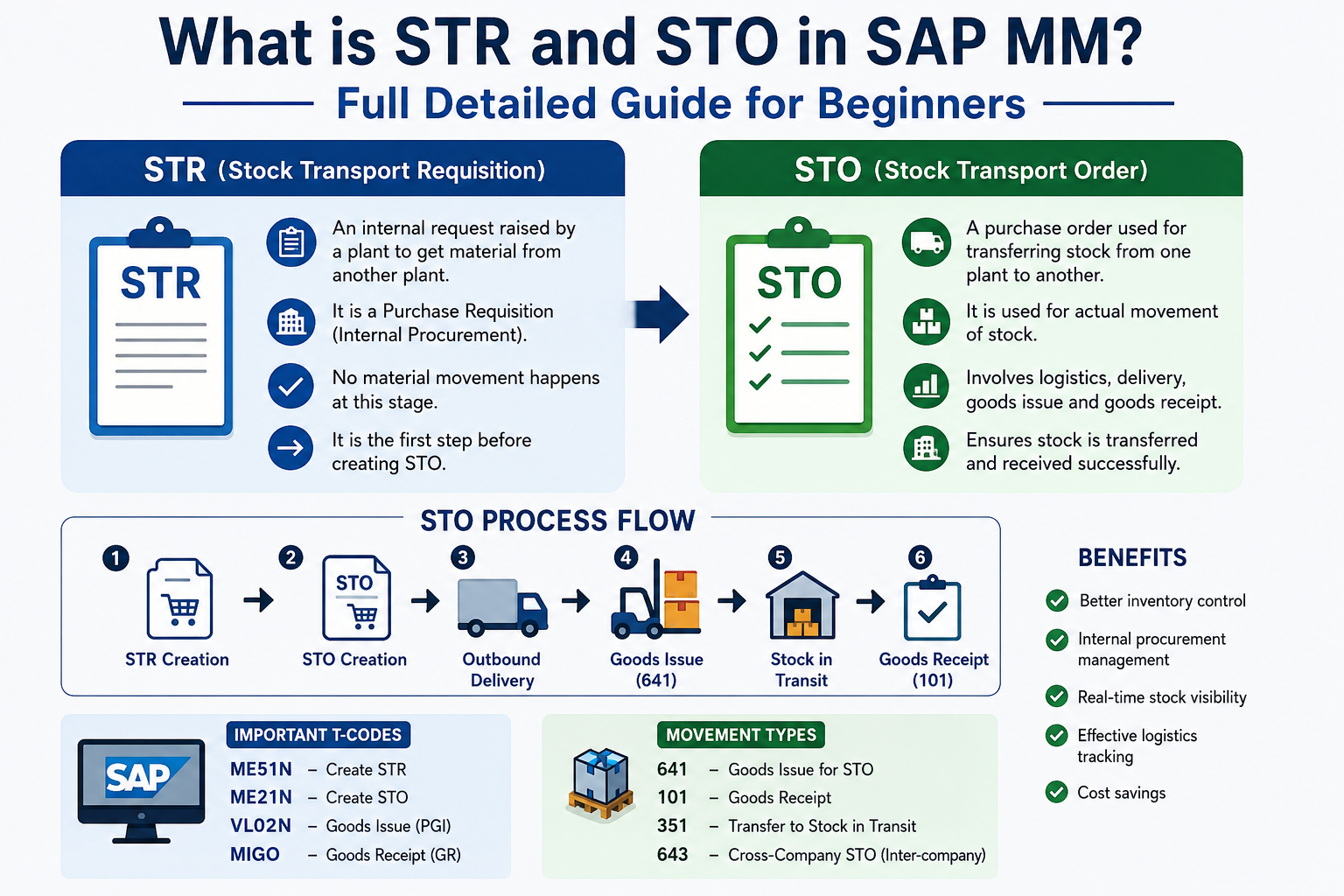
- Purchase Order (PO) is created (ME21N).
- Material has been delivered by the vendor.
- You have authorisation to post goods receipts.
Steps to Post Goods Receipt
Step 1: Open MIGO
- Enter transaction code MIGO in the SAP command field.
- Press Enter.
Step 2: Select Transaction
Choose:
- Transaction: Goods Receipt
- Reference Document: Purchase Order
The movement type is typically 101 for a standard goods receipt.
Step 3: Enter Purchase Order Number
- Enter the Purchase Order Number.
- Click Execute (✓) or press Enter.
SAP displays all PO line items.
Step 4: Verify Item Details
Check the following information:
- Material Number
- Material Description
- Quantity Received
- Plant
- Storage Location
- Batch (if applicable)
- Stock Type (Unrestricted, Quality Inspection, Blocked)
Step 5: Select the Item
- Tick the Item OK checkbox for the items you want to receive.
Step 6: Update Quantity (If Required)
- If only part of the order has arrived, enter the actual received quantity.
- SAP supports partial Goods Receipts.
Step 7: Enter Header Details
On the Header tab, enter:
- Document Date
- Posting Date
- Delivery Note Number (if available)
Step 8: Check the Document
Click Check.
If there are no errors, SAP displays:
Document is OK
Step 9: Post the Goods Receipt
Click Post.
SAP creates:
- Material Document
- Accounting Document (for valuated materials)
Inventory is updated automatically.
Common Movement Types
| Movement Type | Description |
|---|---|
| 101 | Goods Receipt against Purchase Order |
| 103 | Goods Receipt into GR Blocked Stock (Non-valuated) |
| 105 | Release from GR Blocked Stock |
| 122 | Return to Vendor |
| 161 | Return for Purchase Order |
Example
Purchase Order: 4500012345
Vendor delivers:
- Material: Steel Plate
- Ordered Quantity: 100 PCS
- Received Quantity: 100 PCS
In MIGO:
- Transaction: Goods Receipt
- Reference: Purchase Order
- PO: 4500012345
- Movement Type: 101
- Storage Location: 0001
- Tick Item OK
- Click Check
- Click Post
Output:
- Material Document: 5000123456
- Stock increases by 100 PCS
- GR posted successfully.
Business Impact After GR
- Inventory quantity increases.
- Purchase Order History is updated.
- Material Document is created.
- Accounting entries are generated (if applicable).
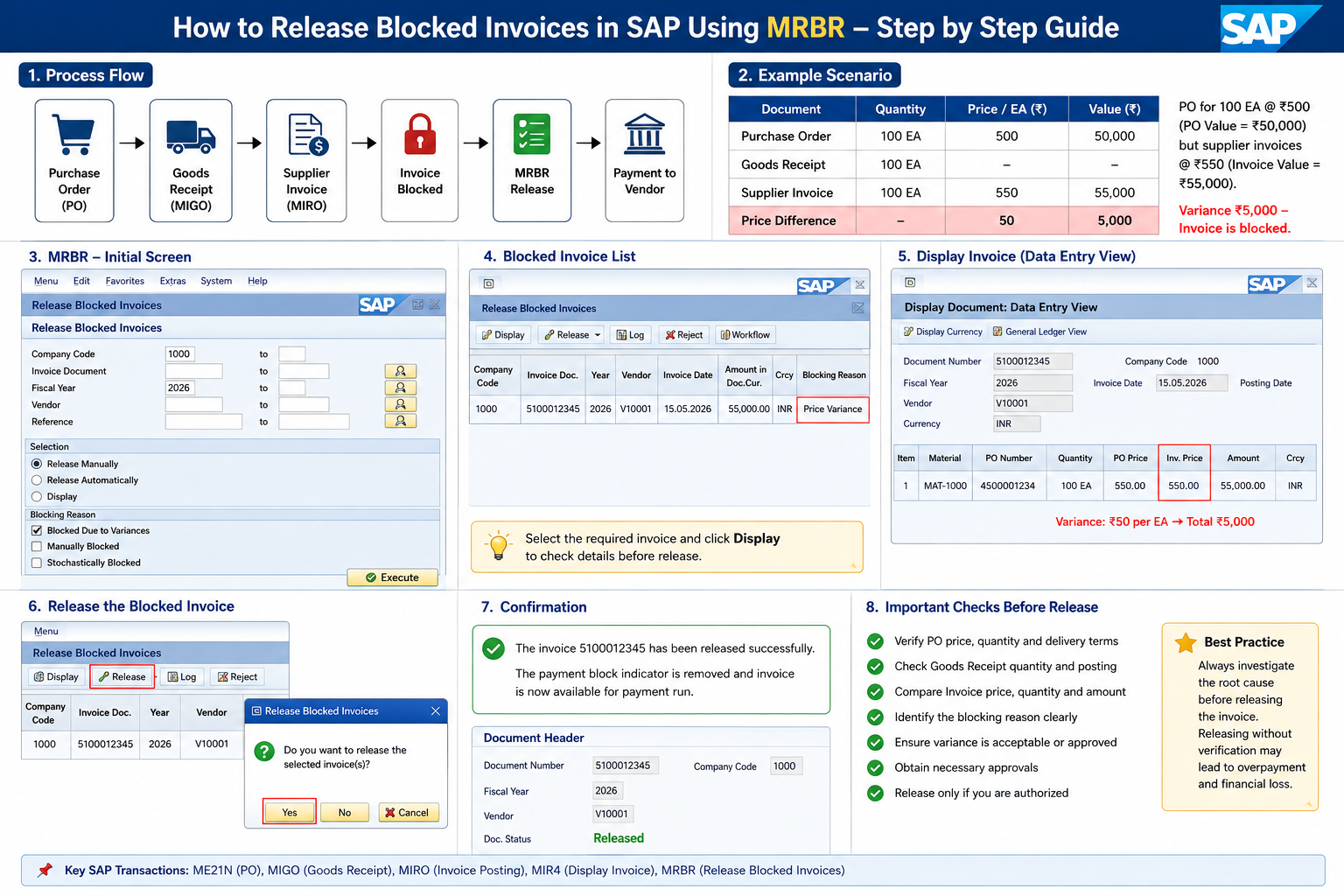
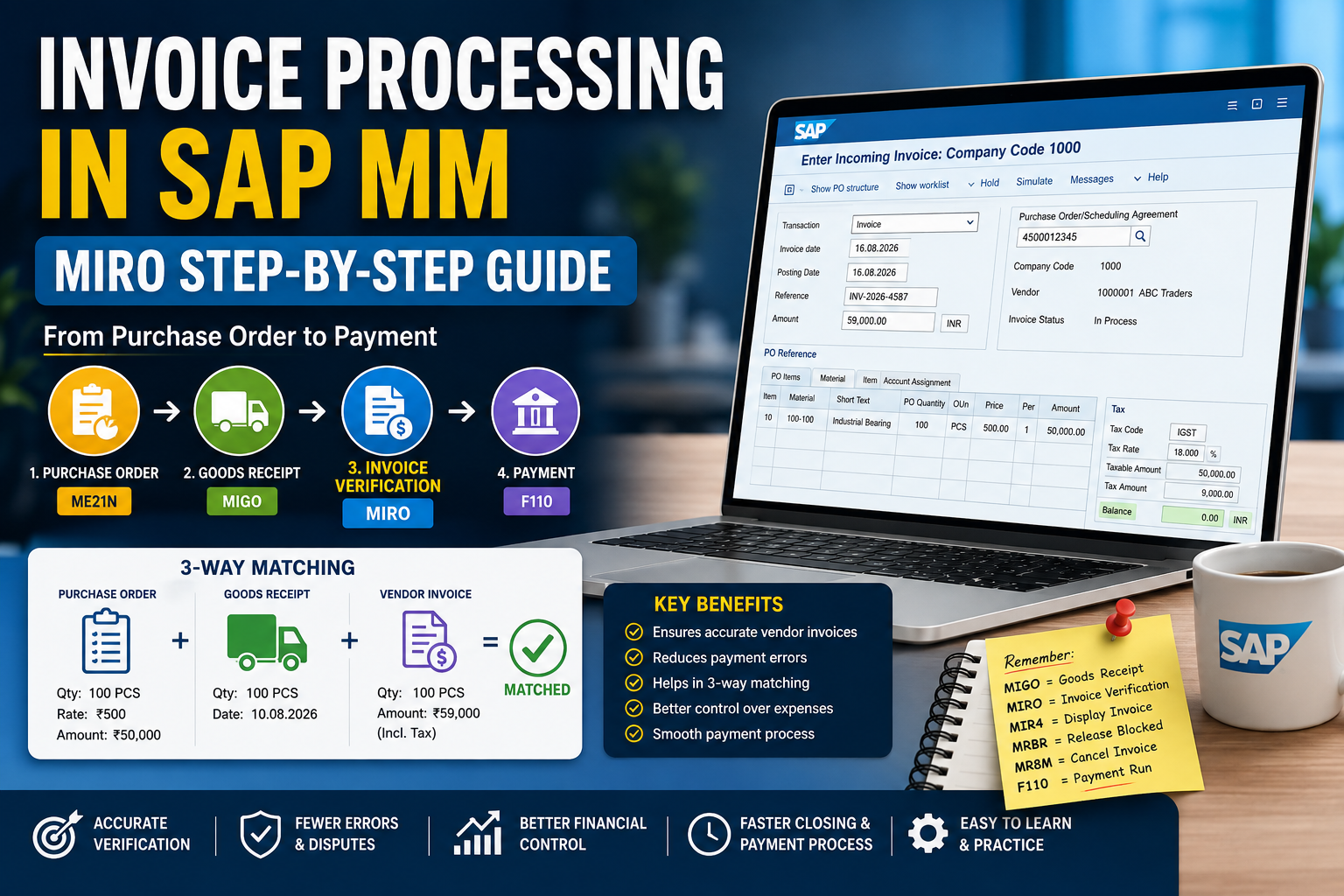
- The invoice can be processed later using MIRO.
Common Errors and Solutions
| Error | Possible Solution |
|---|---|
| Deficit of stock | Verify the movement type and stock availability. |
| Storage location missing | Enter a valid storage location. |
| Quantity exceeds PO | Reduce the received quantity or update the PO. |
| Item not selected | Tick the Item OK checkbox. |
| Purchase Order closed | Check the PO status in ME23N. |
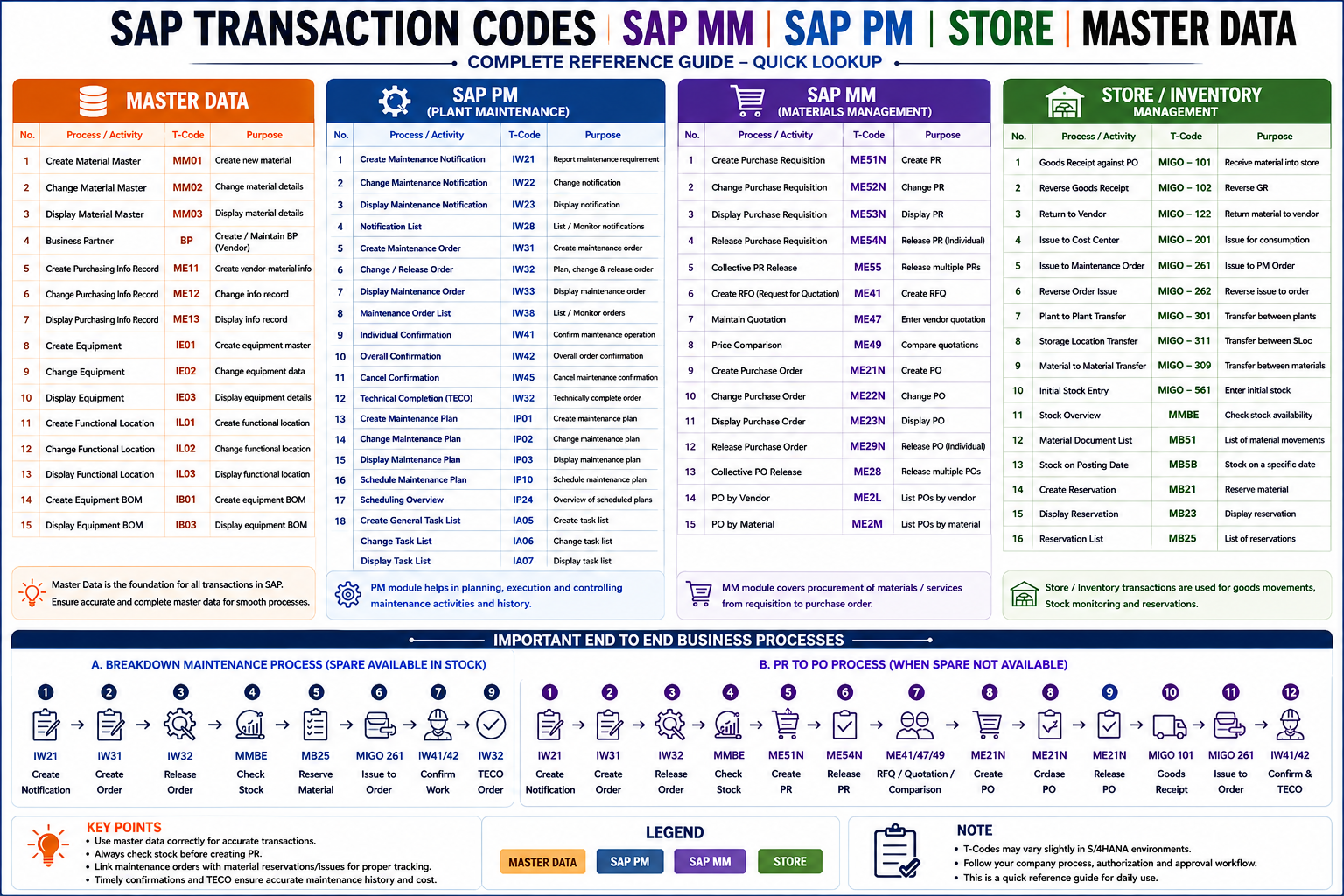
Frequently Used SAP T-Codes
| T-Code | Description |
|---|---|
| MIGO | Goods Movement |
| ME21N | Create Purchase Order |
| ME22N | Change Purchase Order |
| ME23N | Display Purchase Order |
| MIRO | Enter Vendor Invoice |
| MB03 (ECC) / Display Material Document | Display Material Document |