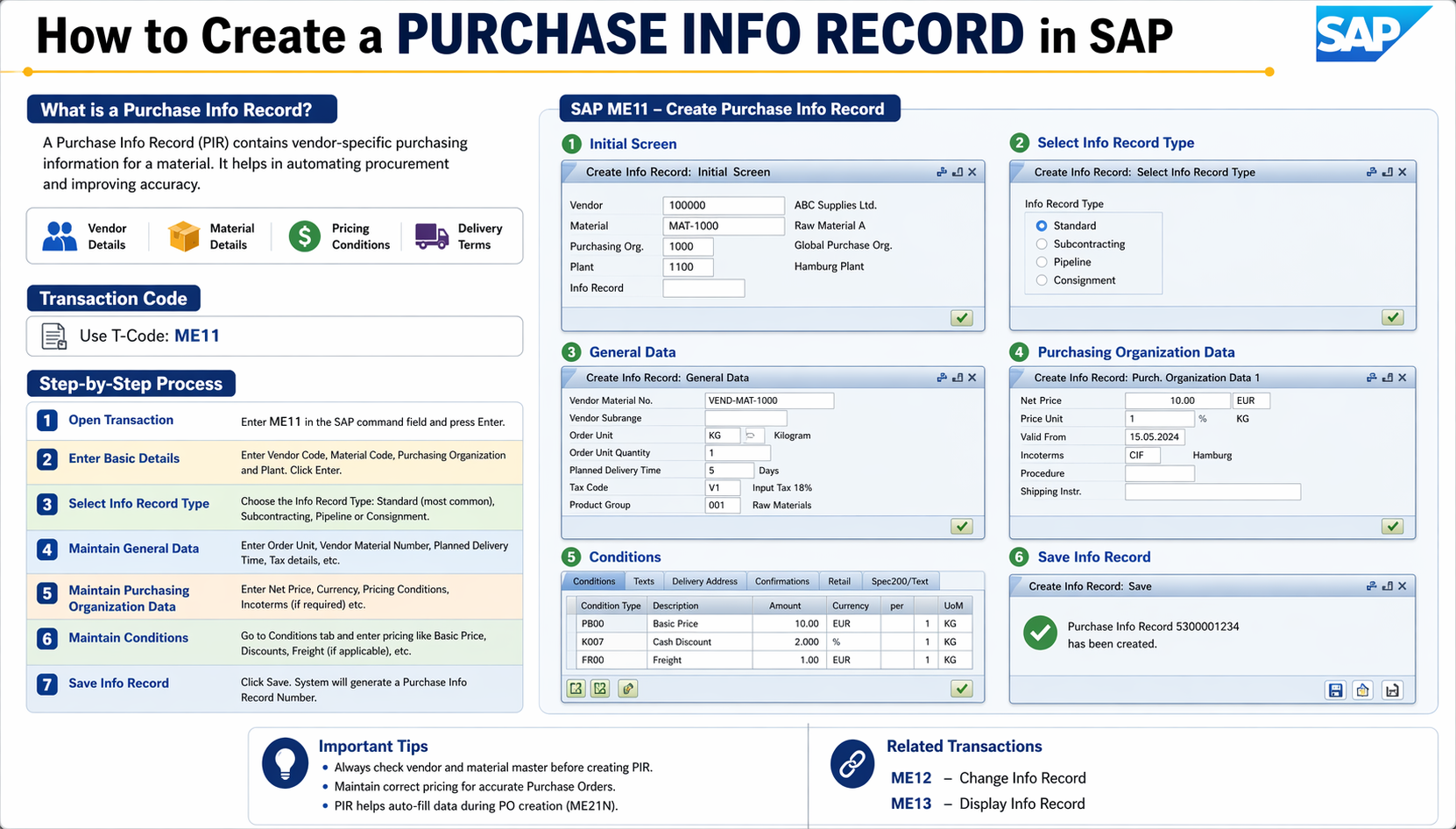
A Purchase Info Record (PIR) in SAP stores purchasing information about a material and a vendor—like price, delivery time, and conditions. Here’s how to create one.
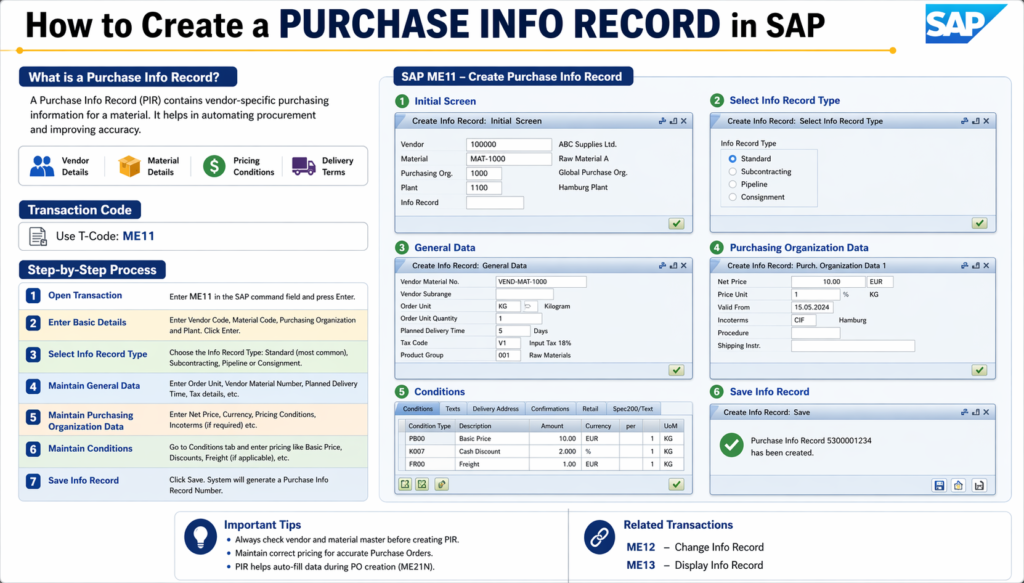
Transaction Code
Use ME11 to create a Purchase Info Record.
Step-by-Step Process
1. Open the transaction
- Go to SAP Menu → Logistics → Materials Management → Purchasing → Master Data → Info Record → Create
- Or type ME11 in the command field.
2. Enter header data
- Vendor – Vendor account number
- Material – Material number (optional if it’s a non-stock/text item)
- Purchasing Org. – Your purchasing organization
- Plant – Optional (plant-specific vs. general data)
- Info Category – Standard, Subcontracting, Pipeline, or Consignment
Click Enter or the ✔ checkmark.
3. Fill in General Data (first screen)
- Planned delivery time
- Purchasing group
- Standard quantity
- Tolerance levels (over/under delivery)
4. Fill in Purchasing Organization Data
- Net price – Price per order unit
- Price unit – Quantity the price applies to
- Currency
- Valid from / Valid to – Validity period
- Conditions (if using condition-based pricing)
5. Save
- Click the Save 💾 icon or press Ctrl + S
- SAP will generate an Info Record number (usually starts with 5XXXXXXXXX)
Also Read:
🚀 Enroll in Live SAP Courses:
🎓 SAP MM (Material Management)
🎓 SAP SD (Sales and Distribution)
Key Points to Remember
| Field | Description |
|---|---|
| Info Category | Determines the procurement type |
| Purchasing Org. Data | Mandatory for price/conditions |
| Plant Level | Optional; overrides org-level data |
| Conditions | Used for complex pricing (scales, discounts) |
Useful Related Transactions
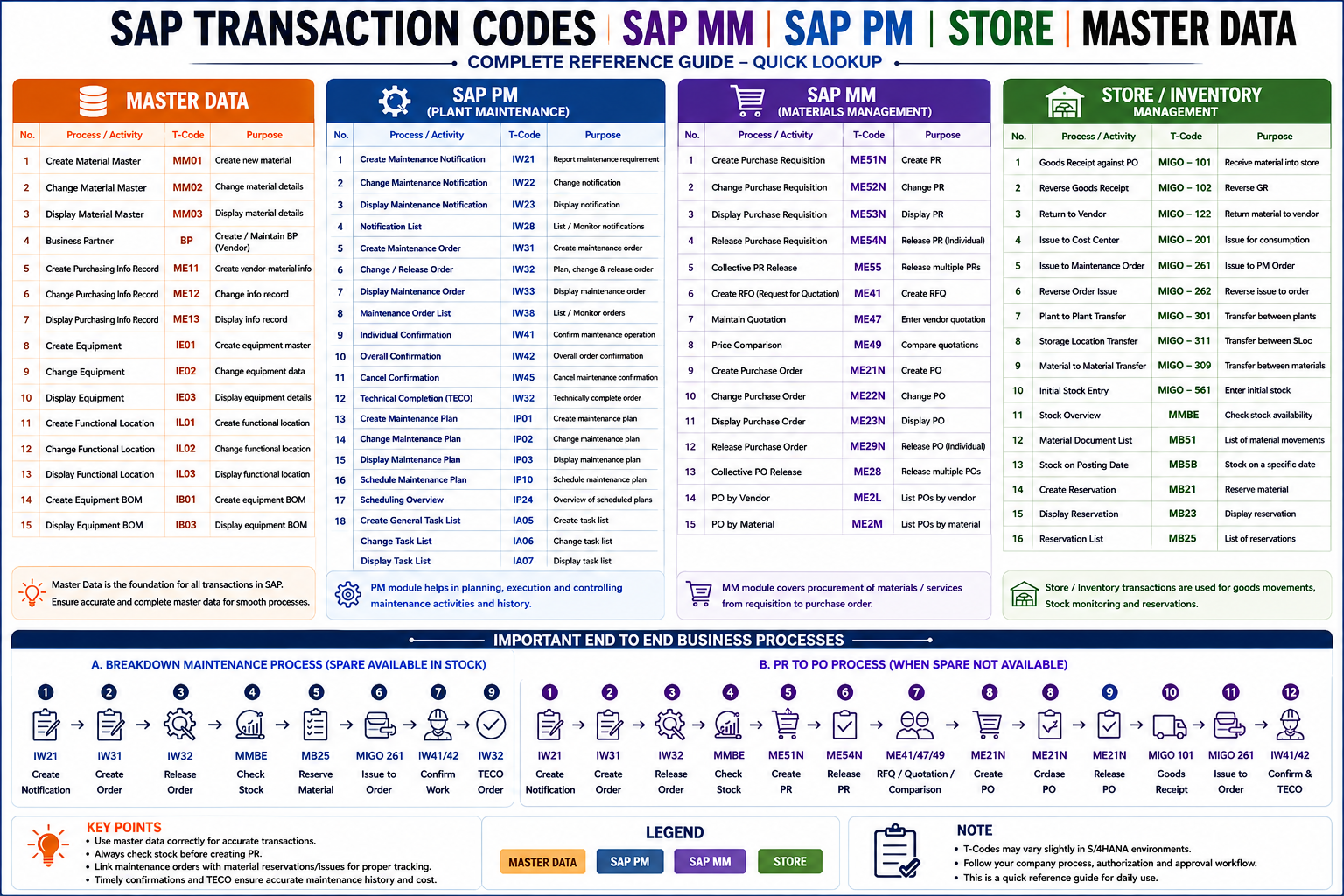
- ME12 – Change a Purchase Info Record
- ME13 – Display a Purchase Info Record
- ME1M – Info Records per Material
- ME1L – Info Records per Vendor